
Tracking report: a summary of injections and measurements
GrowTracker's tracking report sums up everything you marked in the app over the period you choose: on which days the injection was given, on which days it wasn't and the reason recorded, which sites you injected, and a full log, plus height and weight measurements on Pro. You can print it, save it as PDF and share it.
What's in the report
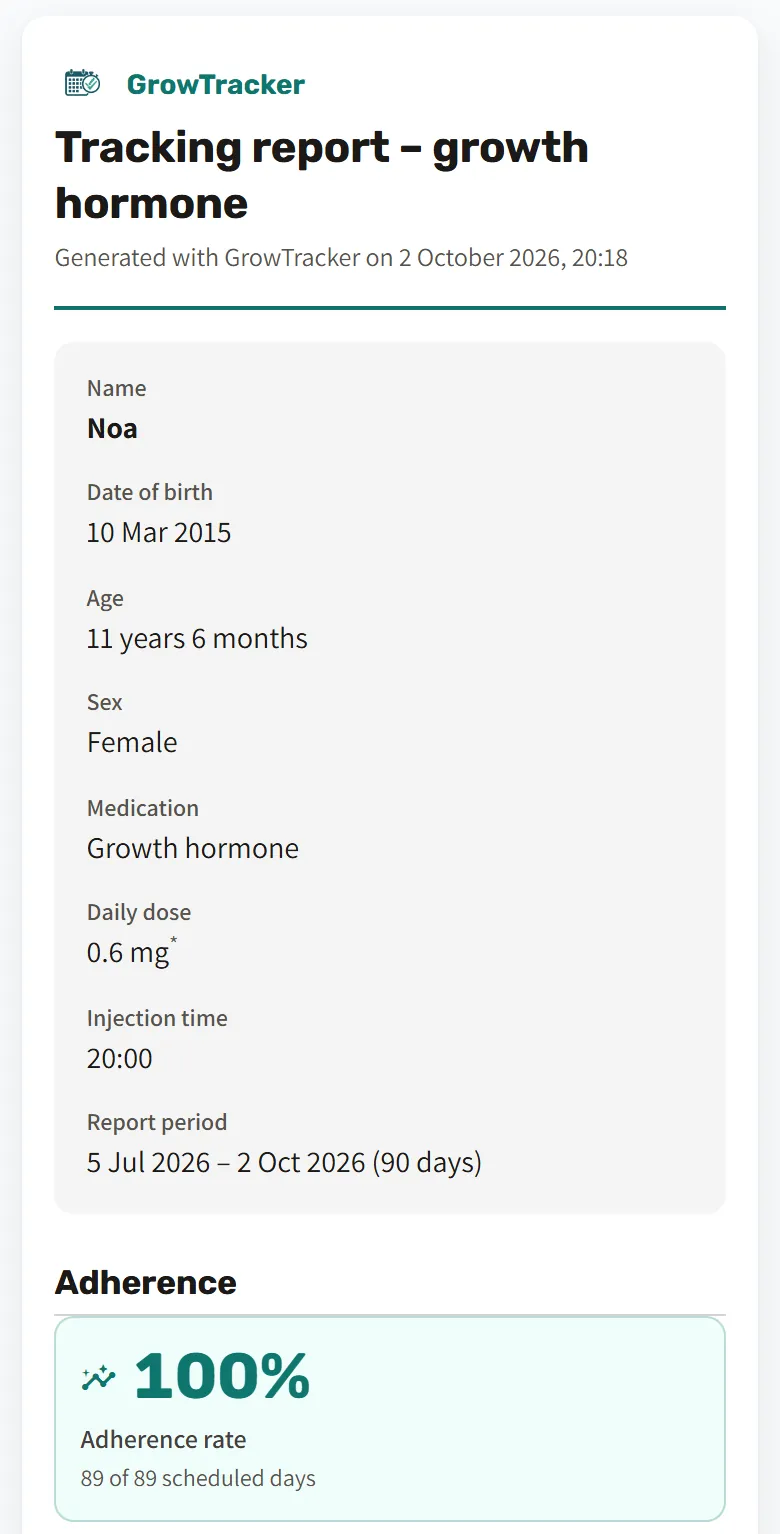
The report is headed “Tracking report – growth hormone”, and these sections follow, in this order:
- Details: name, date of birth, age, sex, the medication name, the dose per injection and the injection time as they are set in the app, and the report period.
- Injection summary: on how many of the scheduled days the injection was given, also as a percentage, how many days were marked “Not injected” and how many passed without a mark.
- Days without an injection: each such day, with the reason recorded, who marked it and a note if one was written.
- Injection sites: how many injections were given at each site in the report period, and what percentage of all the injections that is.
- Growth, on the Pro plan: the measurements with their percentiles, the height-for-age chart and the annual height velocity.
- Injection log: for each day, the planned time, the actual time, the site, the status and who marked it.
- Notes: how each number was calculated and what each status means.
What a person marked, and what the app assumed
The report distinguishes days someone marked from days the app closed by itself. A day nobody marked by 3 a.m. the next morning is closed automatically, unless no pen is left, and appears in the report as “Injected (automatic)”, without an actual time, because no one confirmed it. A day marked “Not injecting today” appears as “Not injected”, with the reason written, and a day left without a mark, for example after you undid an automatic mark, appears as “Not marked”.
How to create the report
On the history page, tap “Create a tracking report”. The “Growth Tracking” page also has “Growth report”, which opens the same report straight at the growth section. You choose a child and a period: the last 30 days, the last 3 months (the default), the last 6 months, the last year, or other dates.
The “Print / save as PDF” button opens the browser's print window, from which you can print the report or save it as a PDF file, and you can send the file like any other. The report always prints on a white background, even when the app is in dark mode.
On a phone there is also a “Share” button, which sends a link to the report. Whoever opens the link needs their own access to the child in the app.
The report is included in both plans. On Essential it covers up to 90 days back, and on Pro up to a year, according to the plan of the parent who manages the child. If you chose a longer period, the report starts at the beginning of the plan's range, and it says from which date.
Who it helps
- For parents: the whole period in one organized report, instead of trying to recall when the injection wasn't given and why.
- For teens who inject on their own: what they marked with their own login goes into the report, so they have an organized picture of the period.
The report is based on what was recorded in the app and does not replace a medical record.
The data in the report comes from the injection log, the injection-site rotation and growth tracking. More about GrowTracker on the features page, and short answers in the FAQ.
Questions about the tracking report
Is the report included on Essential too?
The tracking report is included in both plans, and covers up to 90 days back on Essential and up to a year on Pro. The growth section, with the measurements and percentiles, is included only on Pro.
How do I save the report as a PDF file?
You save the report as PDF by tapping “Print / save as PDF”, which opens the browser's print window. From there you can save it as a PDF file instead of printing it.
Does the report show dose changes over the period?
The report doesn't show dose changes: it shows the dose currently set in the app, because the app doesn't store a separate dose for each injection. The notes at the end of the report say so too.
What is “Injected (automatic)”?
“Injected (automatic)” is a day nobody marked, which the app marked as done at 3 a.m. the next morning. The report shows it separately and without an actual time, because no one confirmed it. If the injection wasn't given, you correct the day in the log, and it is recorded as “Not marked”.
Does GrowTracker send the report itself?
GrowTracker doesn't send the report itself: you print it or save it as PDF, and send it to whoever you like.
Want to try GrowTracker?
30-day free trial. Essential needs no credit card.